How to Choose a Tesla Paint Shop Template by Model, Year, and Variant
Choose the correct Tesla Paint Shop template by model, year, and body variant, including legacy and 2024+ Model 3, 2025+ Model Y, Performance, Plaid, and Model Y L.
In this article
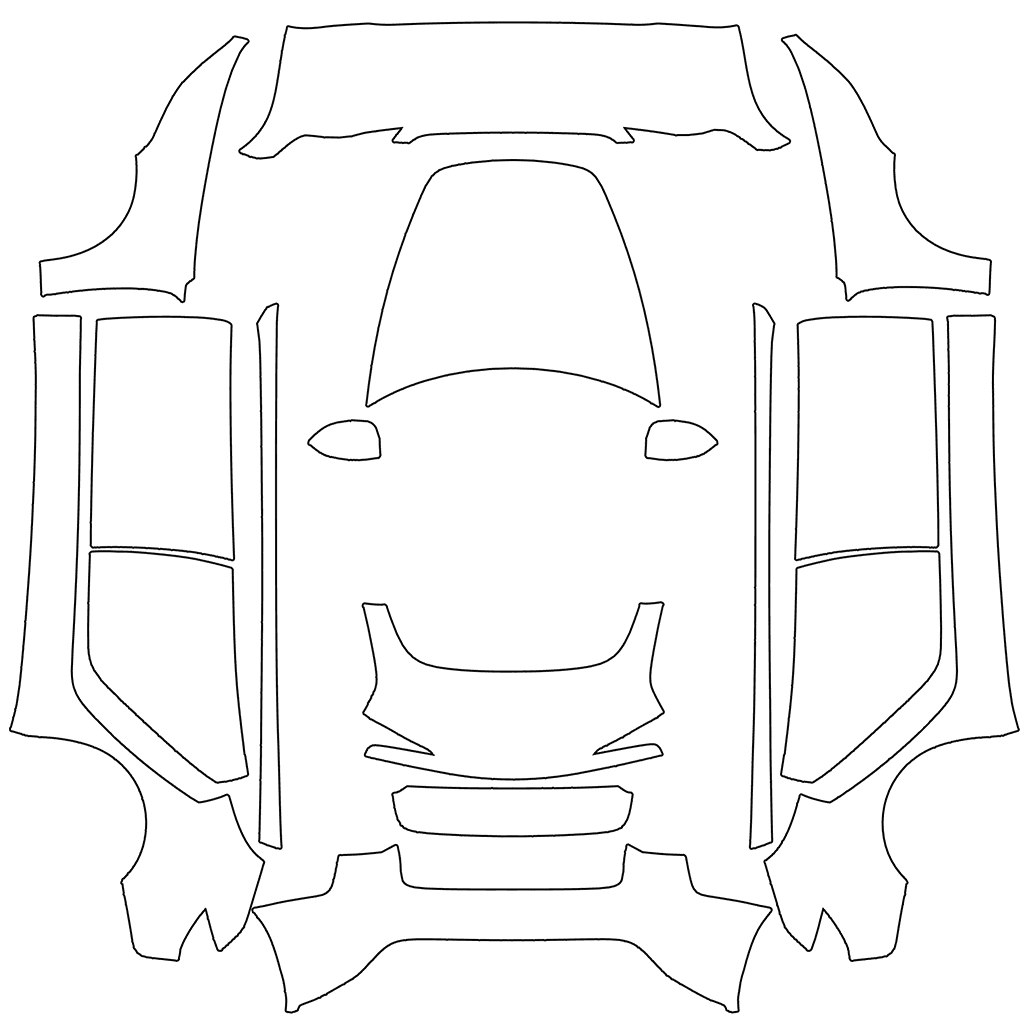
Each region in a Paint Shop template corresponds to part of a specific vehicle's 3D model. The layout can differ by model, model year, and variant, so matching image dimensions alone do not make templates interchangeable.
First find the blank template in the official directory that matches your vehicle's model, year, and variant, then choose or create a design. Changing the import method or renaming the file will not change the template's region layout.
Key takeaways
- Confirm the vehicle model, then its model year and exact variant; do not rely on the purchase year alone.
- Do not reuse a legacy Model 3 template for a 2024+ vehicle by default.
- For 2025+ Model Y templates, distinguish Standard, Premium, and Performance where listed.
- Use the blank template for the same variant as a reference, then check whether your design maps to the intended regions.
Why a successful import does not prove template fit
A file appearing in the car's list does not prove that its design matches the vehicle's 3D model. Use the official blank template with the complete label for your vehicle, keep its original canvas size and region layout, and compare how your design maps onto the model.
Use the blank template for the same variant as a reference, then check whether the design appears in the intended regions. When troubleshooting, change only one thing at a time: the template, the file, or the transfer method. This makes the results easier to compare.
How Tesla separates its current public templates
Tesla's custom-wraps repository separates files by body version. In addition to Cybertruck, Model 3, Model Y, Model S, and Model X, it lists several model-year and performance variants.
- Model 3: legacy, 2024+ Standard / Premium, and 2024+ Performance; owners often call the 2024+ refresh Highland.
- Model Y: legacy, 2025+ Standard, 2025+ Premium, 2025+ Performance, and Model Y L; the 2025+ refresh is often called Juniper.
- Model S: 2021+ and 2025+ Plaid.
- Model X: the current public directory includes a 2021+ version.
- Cybertruck: uses its own dedicated body template.
Check these details before downloading
If you are unsure which template directory matches your vehicle, do not guess from its appearance. Check the model, production year, and variant name against your vehicle information and order details, then compare them with the template page's full label.
- Record the complete vehicle name, not only Model 3 or Model Y.
- Check your vehicle's year against the model's refresh year, and identify its variant: Standard, Premium, Performance, or Plaid.
- Open the template preview and check that the body outline matches the variant you selected.
- Keep the downloaded blank template unchanged and work on a copy so you can compare them later.
Separate fit problems from import problems
Try importing the blank template for the same variant using your chosen app or USB method, then make a design on a copy of that template and compare the results. If the blank template also fails to import, check the PNG requirements and whether the import option is available. For USB, also check the folder, drive format, and data port.
Change one thing at a time and compare the before-and-after results. If you change the transfer method, filename, and export settings together, it becomes harder to tell which change affected the result.
Frequently asked questions
Can Standard and Performance versions of the same model share a template?
Do not assume they can. Tesla provides separate directories for some Standard, Premium, and Performance variants, so use the one matching the complete vehicle version.
Can I choose a template from the purchase year alone?
The purchase year may not match the production or refresh year used in the template label. Check your vehicle's information and actual variant; if you are unsure, compare Tesla's official directory with your vehicle records.
Does a misplaced image always mean the vehicle template is wrong?
Not necessarily. Resizing, cropping, or changing the canvas can also cause misalignment. Use the original blank template as a reference, then check the vehicle variant and any canvas changes one at a time.
Sources
Follow the sources below for Tesla's instructions, template directories, and other references cited in this article. Feature availability and interface details may vary by region, vehicle configuration, and software version.
Tesla's published instructions describe product features and file requirements. The design checks in our articles are editorial guidance; confirm the finished PNG in Paint Shop on the matching vehicle.
Digital Paint Shop templates and design
Tesla Wrap Studio is an independent template platform. Our editorial team explains Paint Shop features, vehicle compatibility, and PNG design, with links to the sources used.
Start with the correct vehicle template
Open the template page for your model and variant. Download the blank PNG first, then choose an example design.
Continue reading
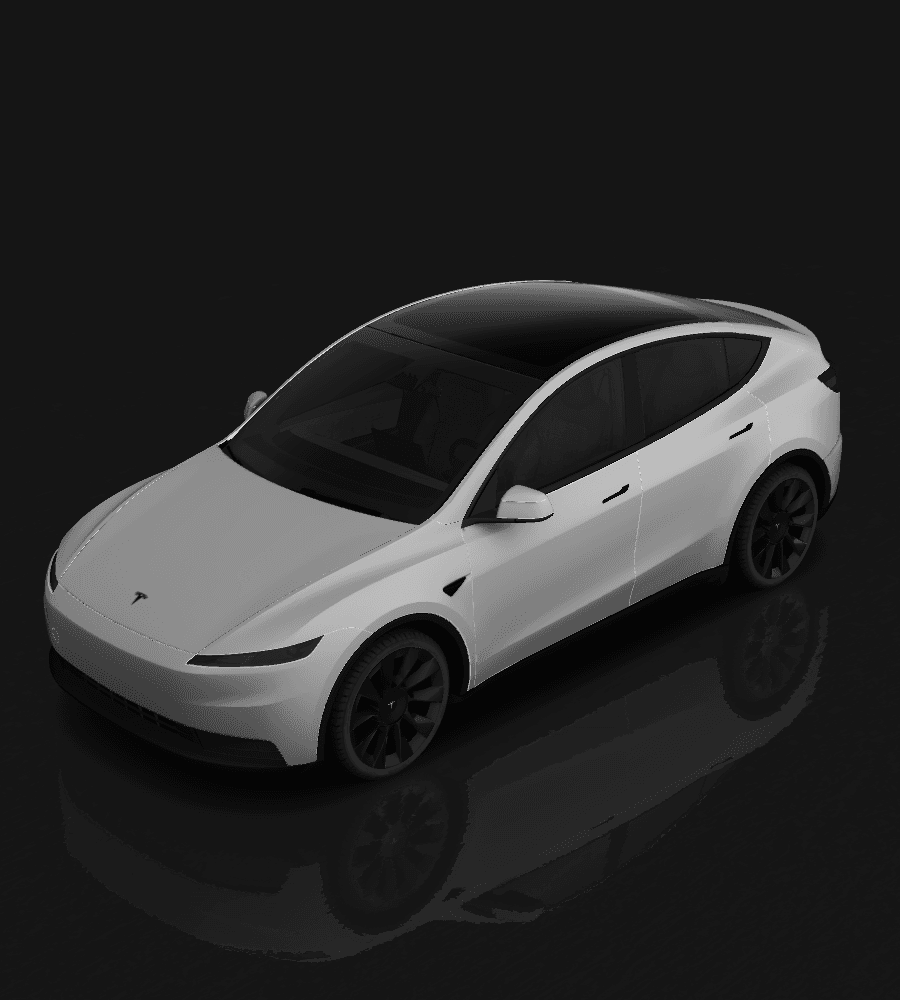
How to Choose a Model Y Juniper Paint Shop Template: 2025+ Variants
Tesla provides separate Paint Shop directories for legacy Model Y, 2025+ Standard, Premium, Performance, and Model Y L. This guide helps you identify the refreshed model and its full variant before choosing the correct blank template.
Read article: How to Choose a Model Y Juniper Paint Shop Template: 2025+ Variants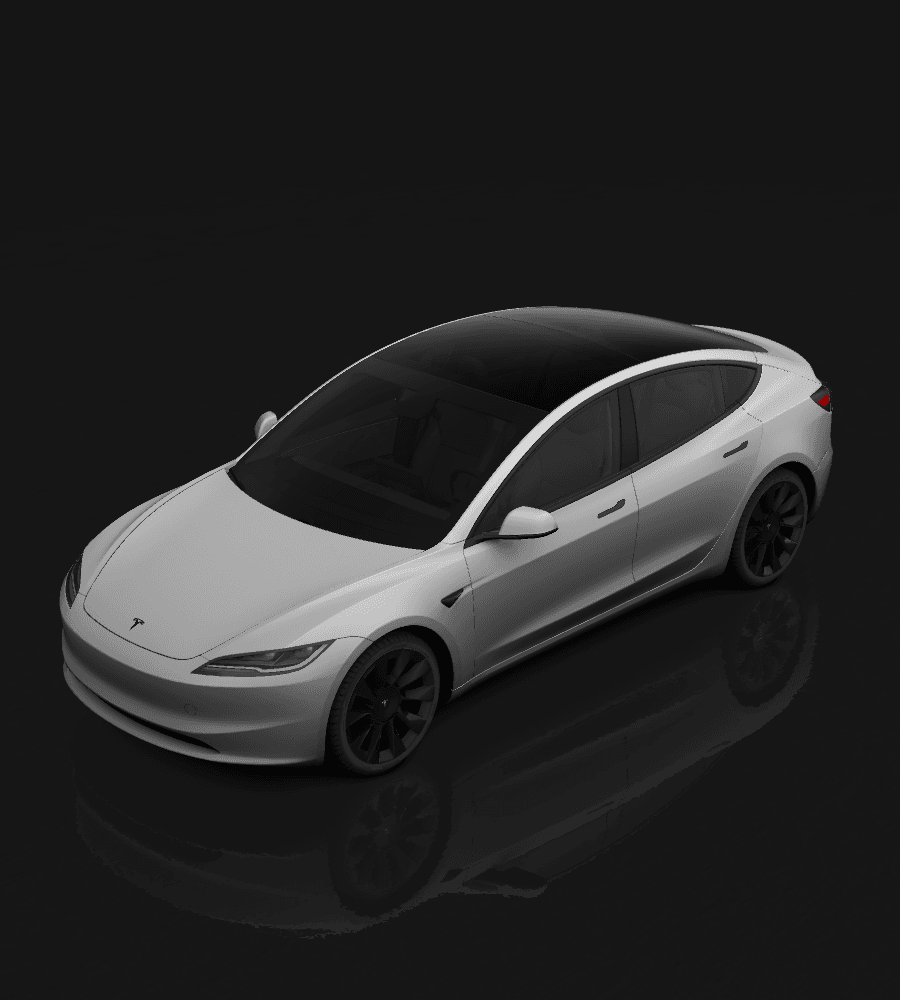
How to Choose a Model 3 Highland Paint Shop Template: Legacy vs. 2024+
Tesla provides separate Paint Shop template directories for legacy Model 3, 2024+ Standard and Premium, and 2024+ Performance. This guide explains how to identify your variant, choose the correct blank template, and avoid misalignment on the 3D vehicle.
Read article: How to Choose a Model 3 Highland Paint Shop Template: Legacy vs. 2024+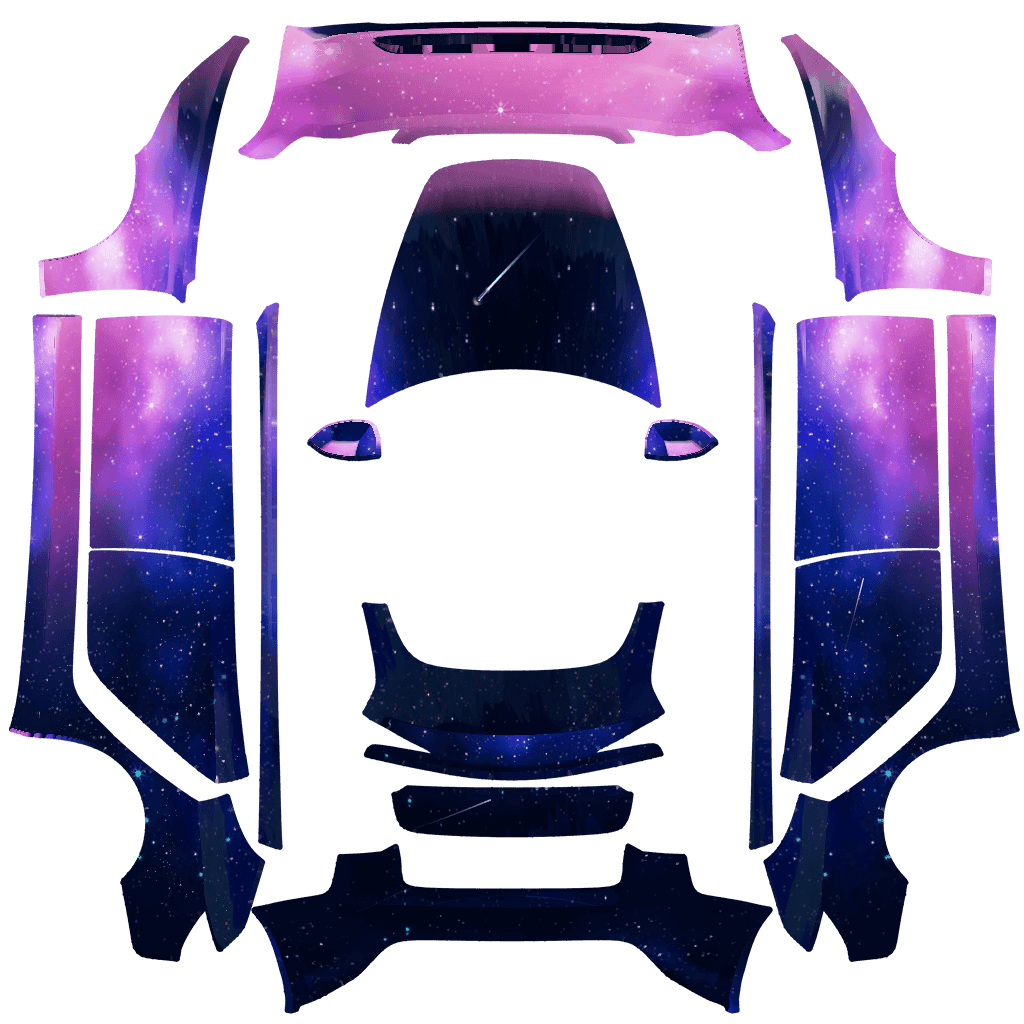
How to Design a Tesla Paint Shop Wrap That Reads Well Across Body Panels
Design a clearer Tesla Paint Shop wrap by working with panel seams, graphic scale, color contrast, the original template canvas, and multi-angle 3D preview checks.
Read article: How to Design a Tesla Paint Shop Wrap That Reads Well Across Body Panels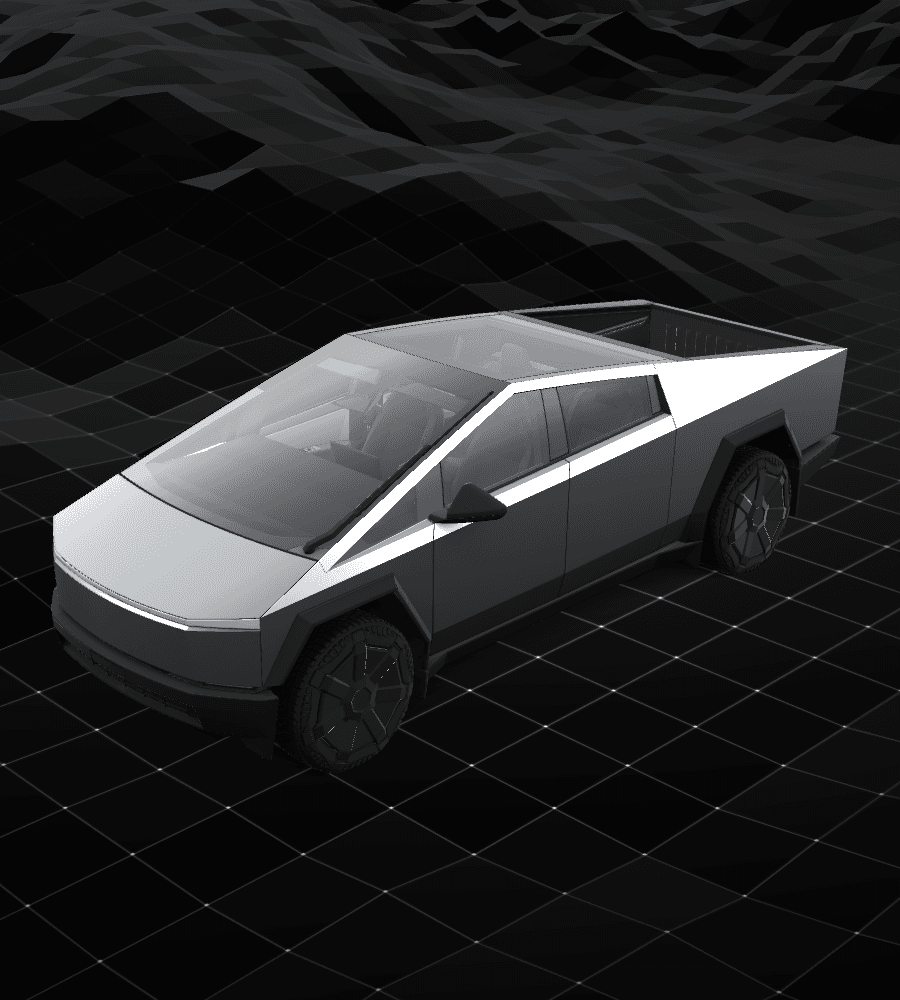
What Is Tesla Paint Shop? Digital Wraps vs. Physical Wraps
Tesla Paint Shop changes only the 3D vehicle on your car's touchscreen, not its actual paint. This article explains PNG templates, vehicle compatibility, and the difference between digital and physical wraps.
Read article: What Is Tesla Paint Shop? Digital Wraps vs. Physical Wraps