How to Design a Tesla Paint Shop Wrap That Reads Well Across Body Panels
Design a clearer Tesla Paint Shop wrap by working with panel seams, graphic scale, color contrast, the original template canvas, and multi-angle 3D preview checks.
In this article
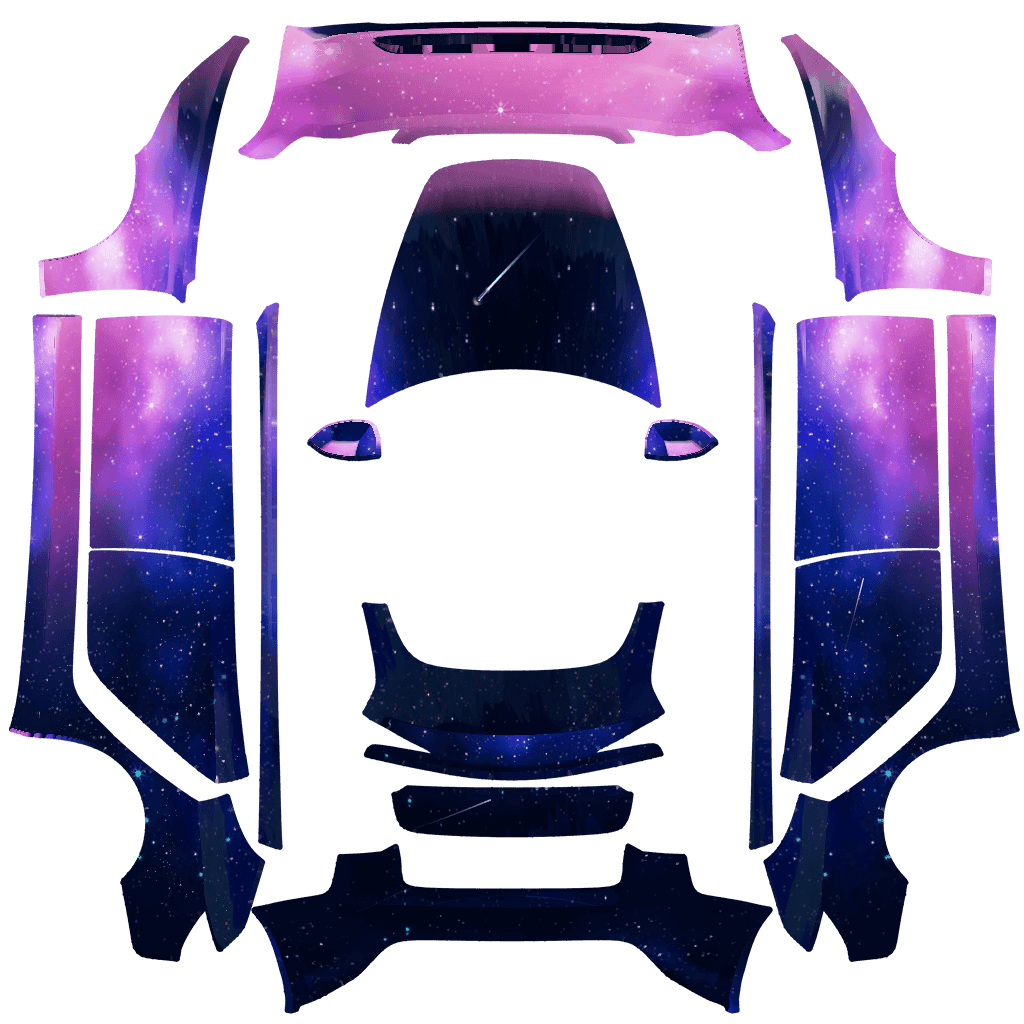
A flat design that looks complete on a computer can be split by panel boundaries and seams when it is mapped onto the 3D vehicle. When designing a Paint Shop wrap, check both the artwork's position on the flat template and how clearly it appears from different viewing angles on the car's touchscreen.
You can start by choosing a body region for the main graphic, then use texture to connect the other areas. Where possible, keep text, faces, and other elements that need to remain recognizable away from panel seams.
Key takeaways
- Keep the primary graphic inside one continuous body region where possible.
- Build hierarchy with large color shapes before adding detail and texture.
- Do not resize, crop, or move the original template canvas.
- Review the exported design from several angles in the Paint Shop 3D view.
Read the body map before composing
Regions that touch on the flat file may not meet in the same way on the 3D model. Identify doors, front and rear fenders, the nose, rear, and roof before designing. Put elements that must remain recognizable on larger surfaces with less distortion.
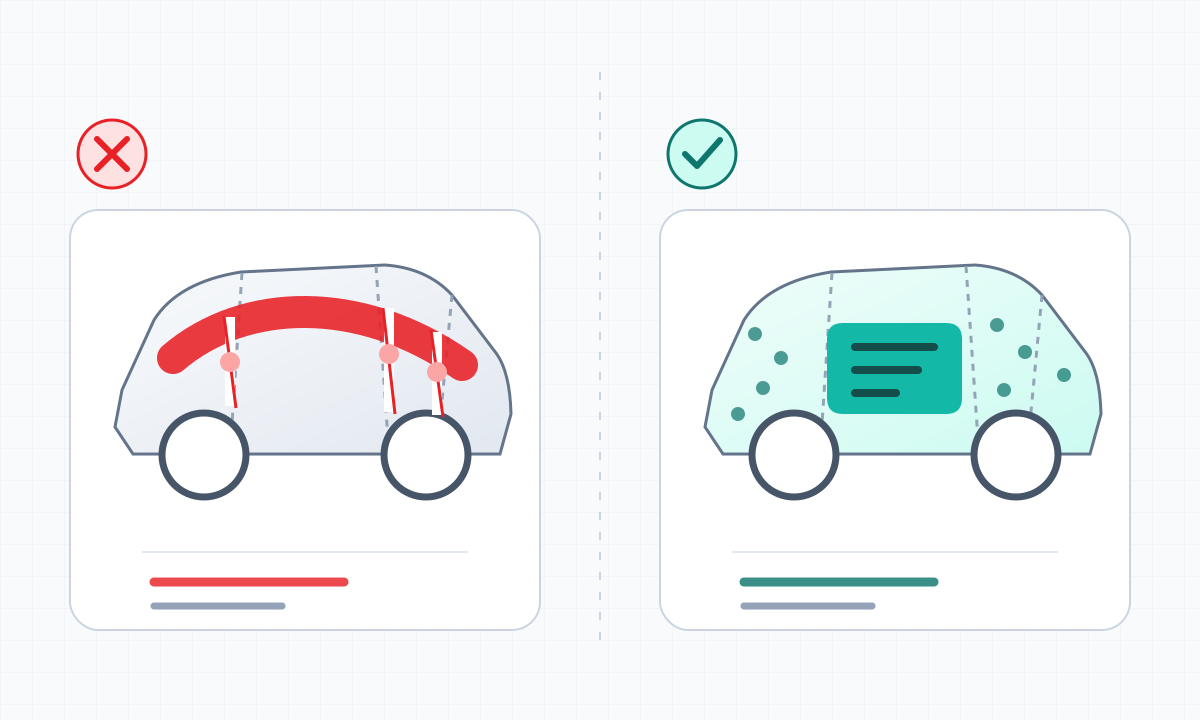
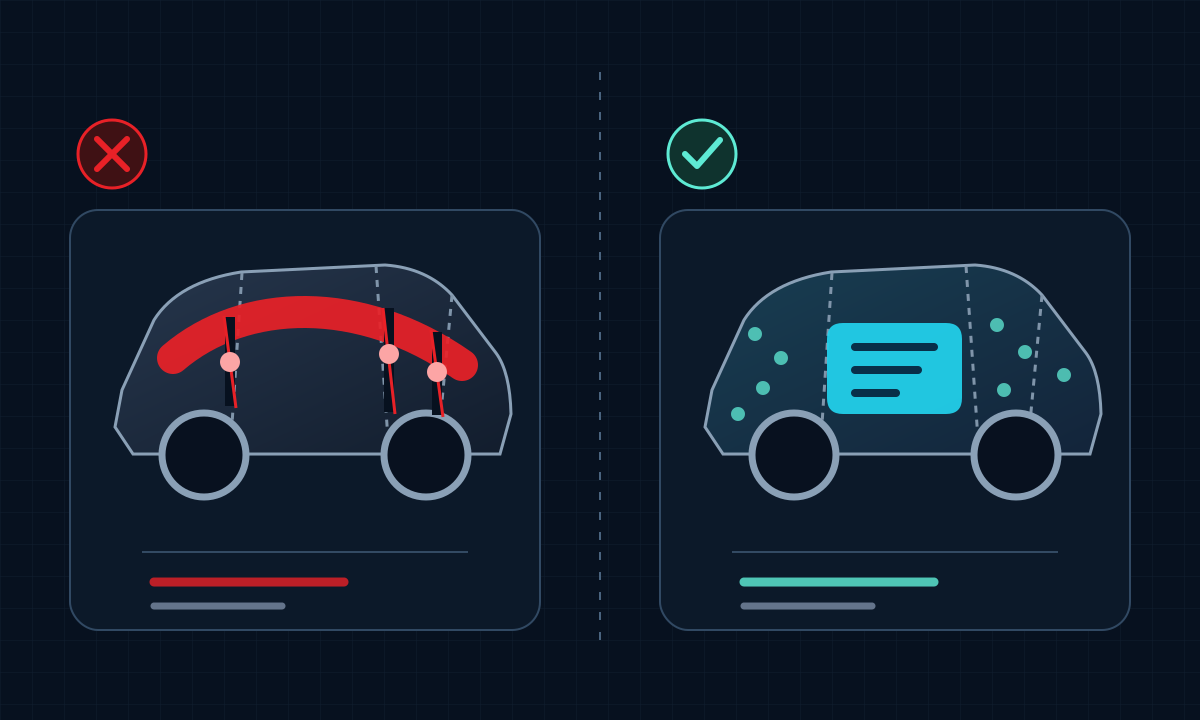
Misalignment is often more noticeable in text, faces, and geometric centerlines. To connect different regions, try gradients, grain, or repeating textures, then check in the car whether the seams still stand out.
Design for touchscreen scale and contrast
The vehicle will not always appear at its largest size on the touchscreen. Fine lines, low-contrast text, and dense small patterns can disappear in a wider view. Start with two or three large color shapes, then decide which details are necessary.
- Make the main graphic large enough to be recognizable in a thumbnail.
- Give text a clear light-dark contrast instead of relying on a thin outline.
- Limit competing saturated colors so the design has one focal point.
- Check the silhouette in both thumbnail and close views.
Keep the original canvas size and region layout
When adding layers or masks in your design software, keep the original template's pixel dimensions and region positions. Do not resize or crop the canvas. You can adjust the artwork, but changing the template layout may stop it from lining up with the intended body regions.
Keep an unmodified copy of the original template, and save the editable project separately from the final PNG. If the design is misaligned, compare it with the original template to check whether the template layout changed.
Export, preview, and adjust the design
After importing your exported PNG into Paint Shop, check the main graphic from the front quarter, side, rear quarter, and a more distant view. Return to the editable project to make changes, fixing one issue at a time so you can compare the results.
- Check whether door and fender seams cut through the subject.
- Check whether graphics on the nose or rear reverse or stretch unexpectedly.
- Check both sides for accidental asymmetry.
- Finish by confirming PNG dimensions, the 1 MB limit, and filename rules.
Frequently asked questions
Why does a graphic look intact on the template but split in Paint Shop?
The flat image is mapped onto several 3D body parts. A graphic that crosses their boundaries can be divided by seams, distortion, or camera angle.
Can I enlarge the template canvas before exporting?
Enlarging the canvas is not recommended. Keep the original template dimensions and coordinates; for clearer detail, adjust the artwork rather than resizing the whole canvas.
Does the design need to look identical from every angle?
No. Prioritize a clear main view and protect the key message from seams, then use repeatable texture in transition areas.
Sources
Follow the sources below for Tesla's instructions, template directories, and other references cited in this article. Feature availability and interface details may vary by region, vehicle configuration, and software version.
Tesla's published instructions describe product features and file requirements. The design checks in our articles are editorial guidance; confirm the finished PNG in Paint Shop on the matching vehicle.
Digital Paint Shop templates and design
Tesla Wrap Studio is an independent template platform. Our editorial team explains Paint Shop features, vehicle compatibility, and PNG design, with links to the sources used.
Start with the correct blank template
Choose the blank template for your vehicle model, keep the canvas unchanged, and export your design as a PNG that meets Paint Shop's requirements.
Continue reading
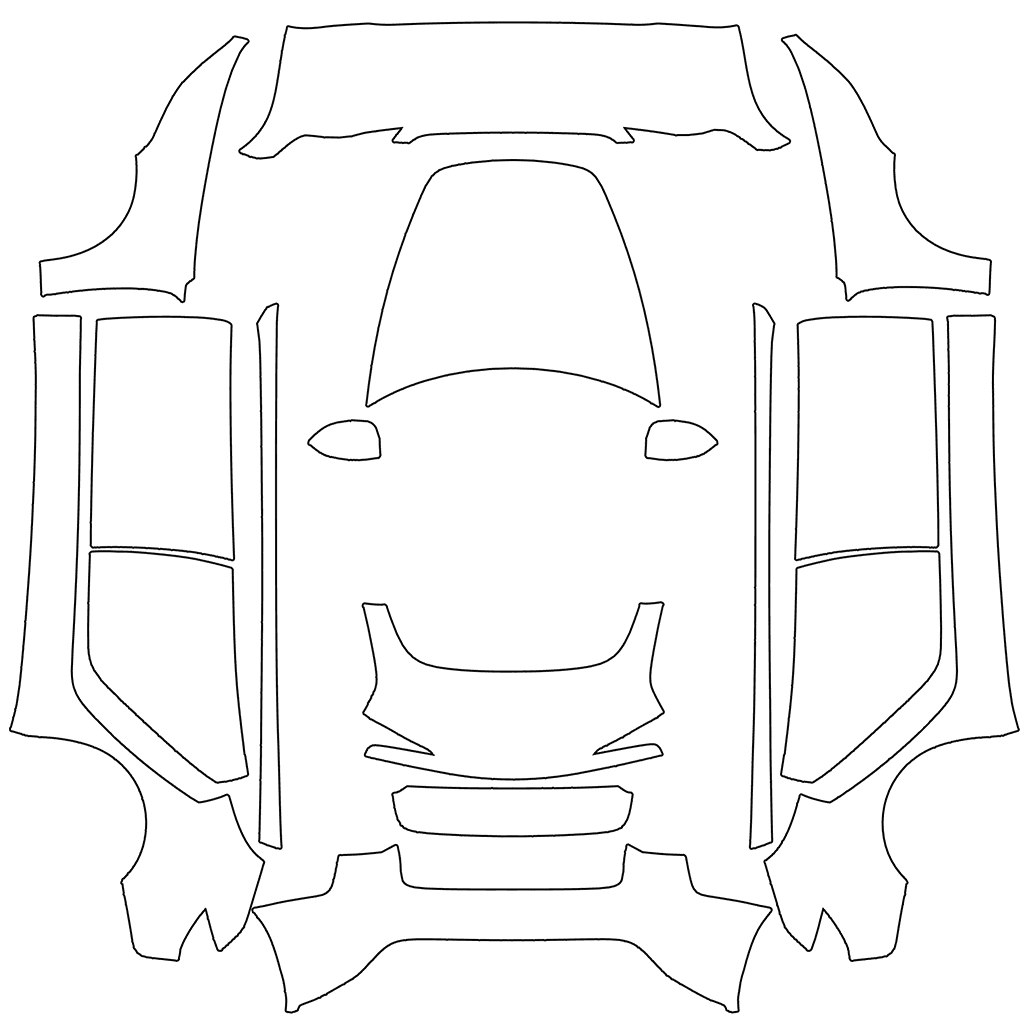
What Do White and Transparent Areas Mean in a Tesla Paint Shop Template?
Understand the white areas for artwork and the transparent background in a Tesla Paint Shop PNG. Follow our editing suggestions to keep the original canvas and check alpha edges, then inspect the result in the car's 3D preview after export.
Read article: What Do White and Transparent Areas Mean in a Tesla Paint Shop Template?
How to Connect Repeating Patterns and Gradients Across Tesla Paint Shop Body Regions
Learn how to make seamless repeat tiles and gradients for Tesla Paint Shop: check that all four tile edges join first, then adjust pattern size, direction, and color transitions for each body region.
Read article: How to Connect Repeating Patterns and Gradients Across Tesla Paint Shop Body RegionsHow to Place Text and Logos on a Tesla Paint Shop Wrap
Design text, logos, and marks for a Tesla Paint Shop 3D appearance: choose continuous body regions, adjust type size and contrast, leave clear space, and use previews from several angles to correct misalignment at seams.
Read article: How to Place Text and Logos on a Tesla Paint Shop WrapHow to Choose a Tesla Paint Shop Template by Model, Year, and Variant
Choose the correct Tesla Paint Shop template by model, year, and body variant, including legacy and 2024+ Model 3, 2025+ Model Y, Performance, Plaid, and Model Y L.
Read article: How to Choose a Tesla Paint Shop Template by Model, Year, and Variant
What Is Tesla Paint Shop? Digital Wraps vs. Physical Wraps
Tesla Paint Shop changes only the 3D vehicle on your car's touchscreen, not its actual paint. This article explains PNG templates, vehicle compatibility, and the difference between digital and physical wraps.
Read article: What Is Tesla Paint Shop? Digital Wraps vs. Physical Wraps