How to Choose a Model 3 Highland Paint Shop Template: Legacy vs. 2024+
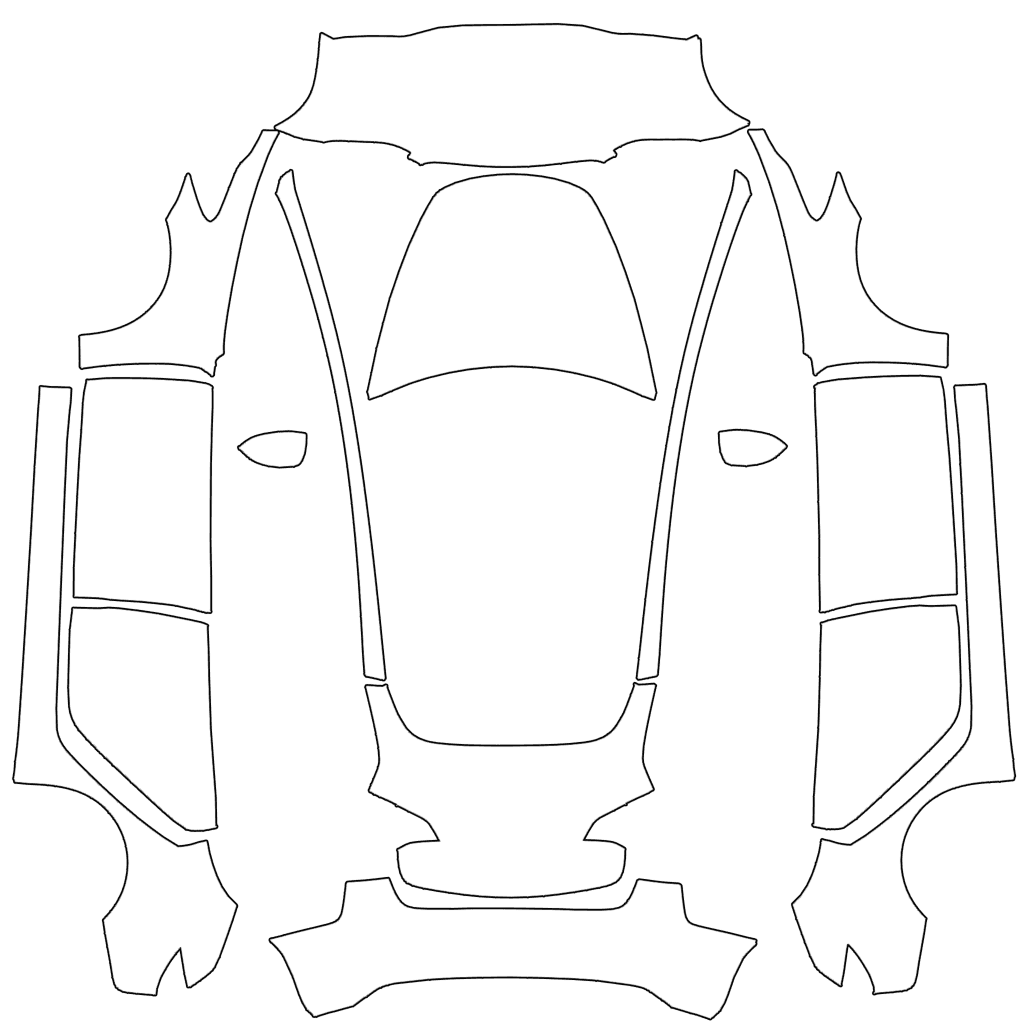
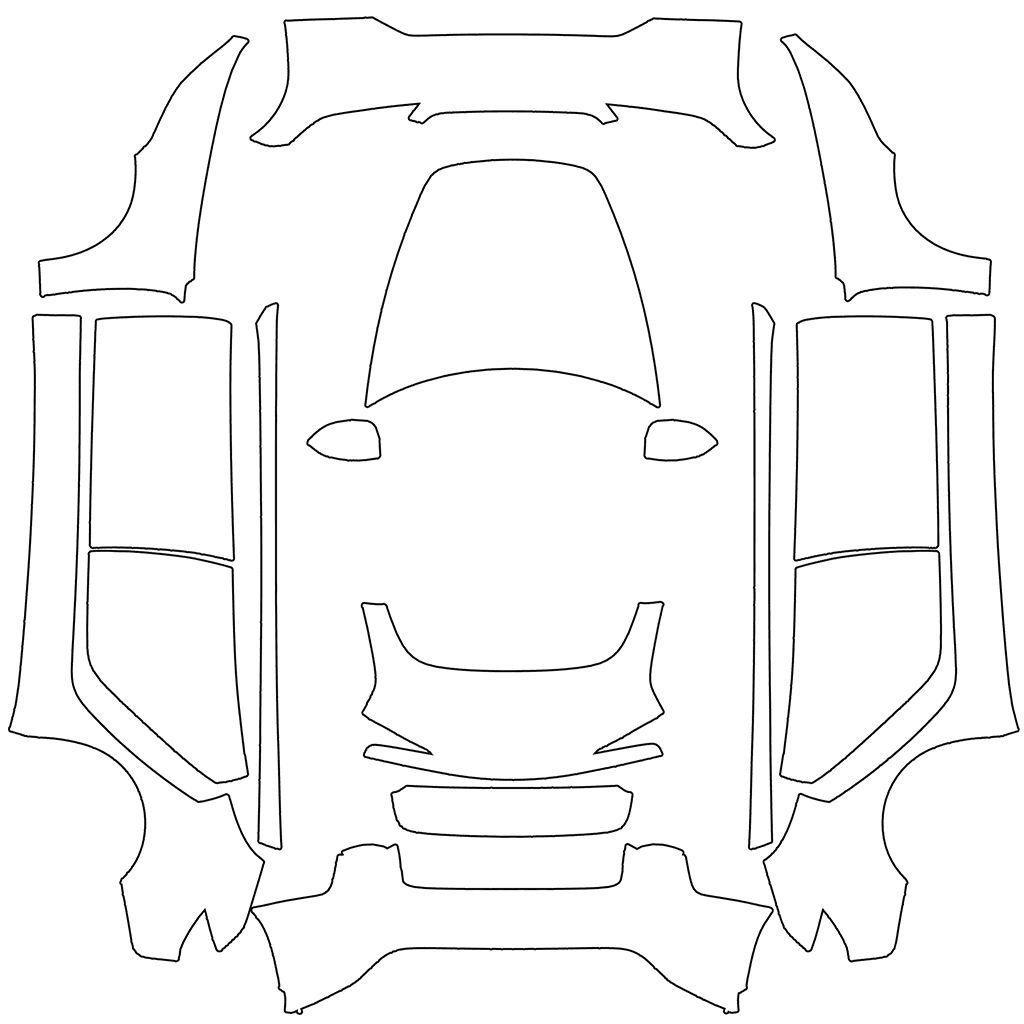
Tesla provides separate Paint Shop template directories for legacy Model 3, 2024+ Standard and Premium, and 2024+ Performance. This guide explains how to identify your variant, choose the correct blank template, and avoid misalignment on the 3D vehicle.

In this article
Model 3 (2024+) has two public template directories: Standard and Premium share one, while Performance uses the other. Tesla's custom-wraps repository also keeps a legacy Model 3 directory, so distinguish these three options before choosing a Highland template.
Highland is a common name used by owners and the media for the Model 3 refresh. Tesla's public template directory uses the label Model 3 (2024+). Choose based on the vehicle's actual year and full variant, not the Highland name alone.
Tesla template references

Key takeaways
- Legacy Model 3 uses the separate model3 directory.
- 2024+ Standard and Premium share one public directory.
- 2024+ Performance has its own directory.
- Test the blank file for the exact variant before adding artwork.
Start with the three public Model 3 directories
Tesla's public repository uses three directories for legacy Model 3, 2024+ Standard and Premium, and 2024+ Performance. Choose the blank template for your vehicle's full variant, and do not assume that canvases from different directories are interchangeable.
- Model 3: the legacy body directory.
- Model 3 (2024+) Standard & Premium: the shared non-Performance 2024+ directory.
- Model 3 (2024+) Performance: a separate 2024+ Performance directory.
Identify your Model 3 (2024+) variant
Check the full variant in the vehicle information, order details, or Tesla app. The purchase year may not match the refresh year used by the template, so confirm both whether the vehicle is a 2024+ model and its exact variant name.
- First check whether your vehicle is the 2024+ refreshed Model 3.
- Then identify Standard, Premium, or Performance.
- Match the complete vehicle label to the download page.
Check the design at Model 3 door seams
After choosing the official template for your variant, you can inspect the seams between the front fender and front door, the front and rear doors, and the rear door and rear quarter panel in the 3D preview. Check whether the design appears in the intended positions. Also verify the directory version against your vehicle information; do not rely on the preview alone.
Shifts in long lines or color bands are easier to spot at the seams. If the blank template for the same variant looks correct but your design is misaligned at a door seam, compare it with the original to check the canvas, template layout, and artwork position before deciding what to adjust.
Use a temporary guide line to check Model 3 seams
One way to check the layout is to keep the original blank PNG unchanged and add a temporary guide line across the side region on a copy, preserving the original canvas size and layout. After importing it, inspect the front door, rear door, and rear quarter panel to see whether the line shifts at the seams.
After confirming the artwork's position, remove the guide line and continue with the final design. Keep the vehicle variant and original canvas unchanged. Adjust one thing at a time, preview again, and compare the changes around the seams and in the artwork's position.
Frequently asked questions
Is Highland an official Tesla template directory name?
No. Highland is a common name for the refresh. Tesla's custom-wraps repository labels the directories Model 3 (2024+) Standard & Premium and Model 3 (2024+) Performance.
Can 2024+ Standard, Premium, and Performance share one template?
Do not assume so. Tesla groups Standard and Premium together but publishes Performance separately, so choose the body map matching the complete vehicle variant.
Can I place a legacy Model 3 design directly on the Highland template?
You can carry over the design idea, but not the old canvas unchanged. Reposition the artwork on the correct 2024+ blank template and inspect it from several angles in Paint Shop.
Sources
Follow the sources below for Tesla's instructions, template directories, and other references cited in this article. Feature availability and interface details may vary by region, vehicle configuration, and software version.
Tesla's published instructions describe product features and file requirements. The design checks in our articles are editorial guidance; confirm the finished PNG in Paint Shop on the matching vehicle.
Digital Paint Shop templates and design
Tesla Wrap Studio is an independent template platform. Our editorial team explains Paint Shop features, vehicle compatibility, and PNG design, with links to the sources used.
Choose a Model 3 template for your exact variant
Check the three directories against your vehicle information, find the blank PNG for the matching variant, then view designs for that version.
Continue reading

How to Choose a Model Y Juniper Paint Shop Template: 2025+ Variants
Tesla provides separate Paint Shop directories for legacy Model Y, 2025+ Standard, Premium, Performance, and Model Y L. This guide helps you identify the refreshed model and its full variant before choosing the correct blank template.
Read article: How to Choose a Model Y Juniper Paint Shop Template: 2025+ Variants
How to Design a Tesla Paint Shop Wrap That Reads Well Across Body Panels
Design a clearer Tesla Paint Shop wrap by working with panel seams, graphic scale, color contrast, the original template canvas, and multi-angle 3D preview checks.
Read article: How to Design a Tesla Paint Shop Wrap That Reads Well Across Body PanelsHow to Choose a Tesla Paint Shop Template by Model, Year, and Variant
Choose the correct Tesla Paint Shop template by model, year, and body variant, including legacy and 2024+ Model 3, 2025+ Model Y, Performance, Plaid, and Model Y L.
Read article: How to Choose a Tesla Paint Shop Template by Model, Year, and Variant