What do white and transparent areas mean in a Tesla wrap template?
Learn how to read the white editable regions and transparent canvas in an official Tesla Paint Shop PNG, preserve the alpha channel, find edge spill, and export without disturbing the body map.
In this article
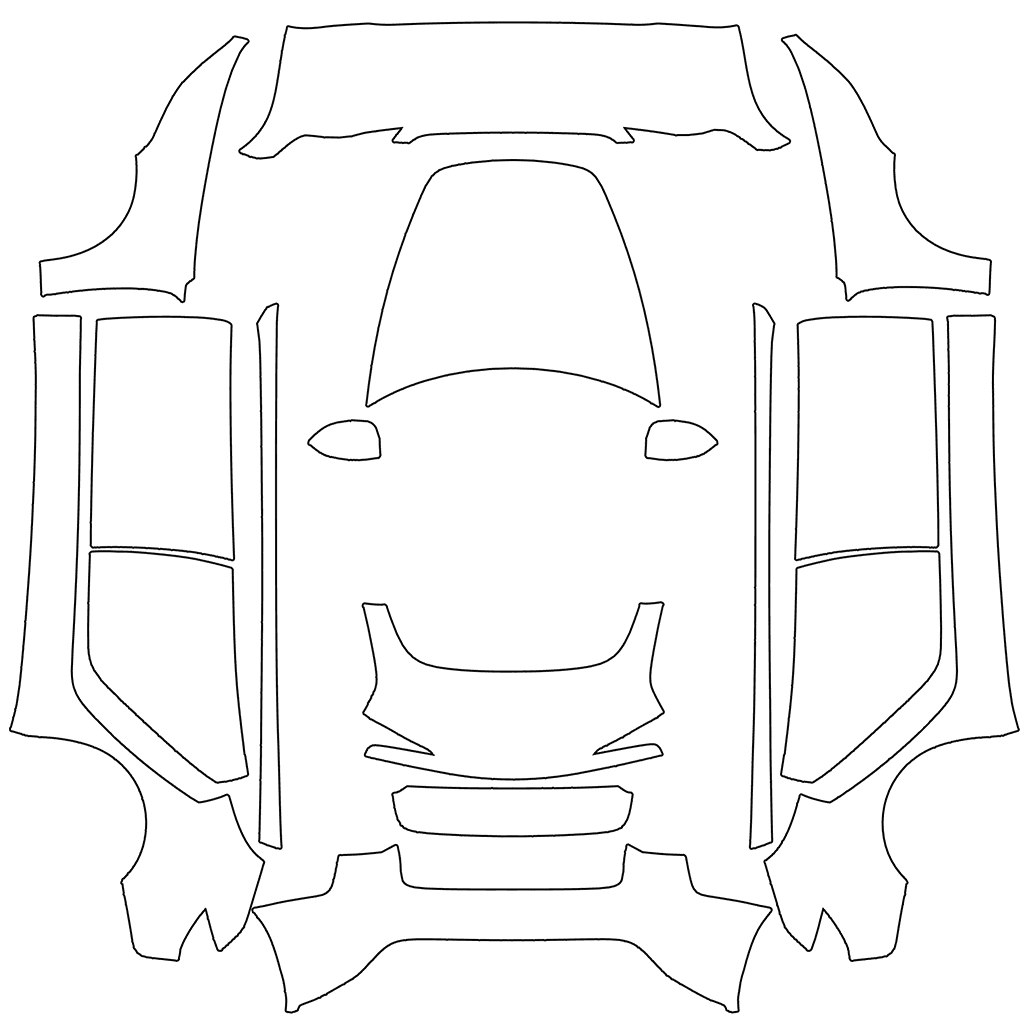
The large white shapes and transparent canvas in an official Tesla Paint Shop PNG are easy to misread. Tesla's public instructions explicitly say to fill the white areas with your design; the transparent remainder is not another body panel to color.
Key takeaways
- White marks the design workspace; it does not have to stay white in the finished wrap.
- Keep the surrounding canvas transparent instead of filling the entire square with a background.
- Preserve the source dimensions, positions, and alpha edges while designing on separate layers.
- Use temporary light and dark inspection backgrounds, then hide them before exporting the PNG.
Read the white shapes as an editable mask
Tesla's custom-wraps repository tells creators to download the template for the correct vehicle and fill in the white areas. White is therefore a work cue, not a requirement that the final body remain white. Color, texture, and artwork can replace it, but the mapped regions should not be moved or rearranged.
The official blank is a PNG with an alpha channel. Transparent pixels separate the mapped body regions from the rest of the canvas. Do not infer a new physical panel from every flat shape, and do not treat the transparent area as extra design space.
Keep an untouched blank and design on separate layers
Duplicate and lock the original template before adding artwork. Put the design on its own layer, then use the white regions to create a selection or mask. This keeps revisions flexible while protecting transparent edges, canvas dimensions, and body-map coordinates.
If the editor adds a solid background automatically, disable it before continuing. Do not crop transparent margins or rearrange white islands to make the flat file look tidier; their placement belongs to the 3D mapping.
- Keep one unchanged copy of the official blank for comparison.
- Separate artwork, mask, and temporary inspection background layers.
- Do not crop the canvas or scale and move official regions.
- Confine final artwork to the white editable shapes.
Inspect alpha edges on both light and dark backgrounds
An editor's checkerboard usually represents transparency, but tiny translucent marks, soft glows, and overspray can be difficult to see. Place a bright temporary color beneath all layers, inspect the canvas, and repeat with a dark color. The inspection color should show cleanly through transparent areas, with no artwork dots outside the body mask.
Hide or delete the temporary background when the check is complete. It exists only to reveal the alpha channel and must not enter the exported file. Preserve the template's existing antialiased edge instead of tracing the entire outline again with a hard eraser.
- View the whole canvas over both a light and a dark color.
- Zoom in on thin lines, shadows, and soft edges near the mask.
- Confirm that white or colored backgrounds do not cover transparent pixels.
- Disable the inspection layer and verify that transparency is still visible.
Preserve PNG transparency, then verify the 3D preview
Export as PNG with the alpha channel intact and keep the original canvas size of the selected official blank. Tesla currently accepts 512-by-512 through 1024-by-1024 images up to 1 MB and recommends using the template size for best results. Renaming a file extension is not a valid conversion, and flattening transparency to white changes the mask.
Keep the canvas supplied for your model: 1024×768 (4:3) for Cybertruck and 1024×1024 (1:1) for the other currently supported models. Do not crop or stretch it into a square.
A clean alpha check only shows that the flat file has no obvious mask contamination; it does not prove that the 3D mapping will be seamless. Inspect the direct side, front quarter, rear quarter, and wide view in Paint Shop. Use the focused guides if the remaining issue is a seam, scale, or vehicle-version mismatch.
Frequently asked questions
Should I fill the transparent areas in a Tesla Paint Shop template?
No. Tesla instructs creators to fill the white areas. Keep the remaining canvas transparent so a square background is not mapped where no design region was provided.
Must the white areas remain white in the finished PNG?
No. White identifies the editable range and can be replaced by color, texture, or artwork. Leave it white only when white is part of the intended design.
Why inspect the alpha channel on two background colors?
Pale spill can disappear on a light background, while dark shadows can disappear on a dark one. Switching between both makes translucent edge pixels easier to find; remove the inspection layer before export.
Does a clean alpha check guarantee the in-car result?
No. It verifies transparency and edge containment only. Vehicle version, 3D seams, scale, and direction still need to be checked in the Paint Shop preview.
Sources
Product features, file requirements, and vehicle directories are sourced from Tesla's first-party material where available. The interface may vary by region, configuration, and software version.
This article draws on Tesla’s published instructions and official templates. Design checks use the flat image file; the result still needs checking on the matching vehicle.
Template and Paint Shop content
Product features, file requirements, and vehicle directories are sourced from Tesla's first-party material where available. The interface may vary by region, configuration, and software version.
Start from an untouched official blank
Choose the correct vehicle template, preserve its transparent canvas, and complete one clean edge check on separate artwork layers.
Continue reading

How to Build Seamless Patterns and Gradients for Tesla Paint Shop
Build seamless repeat tiles and gradients for Tesla Paint Shop: validate all tile edges first, then control scale, direction, and color transitions by body region.
Read article: How to Build Seamless Patterns and Gradients for Tesla Paint ShopHow to Place Text and Logos on a Tesla Paint Shop Wrap
Place text, logos, and marks on a Tesla Paint Shop design by choosing continuous body regions, setting readable scale and contrast, protecting clear space, and testing several 3D angles.
Read article: How to Place Text and Logos on a Tesla Paint Shop Wrap
How to Design a Tesla Paint Shop Wrap That Reads Across Body Panels
Design a clearer Tesla Paint Shop wrap by working with panel seams, graphic scale, color contrast, the original template canvas, and multi-angle 3D preview checks.
Read article: How to Design a Tesla Paint Shop Wrap That Reads Across Body Panels